
How to collect missing attendee details after an event
A straightforward way to handle attendees who are missing from the certificate list, without collecting names across scattered chats and email threads.
By Abhiram Krishna · Founder and engineerPublished Updated 3 min read
In this guide
The use case
An attendee export is rarely perfect. People register with one email and attend with another, or a participant never completed the form. The public Issue Request Form gives them one place to submit their details. You decide whether each submission is reviewed or whether anyone who submits receives the certificate automatically.
How it works in Verifycate
Issue Request Form
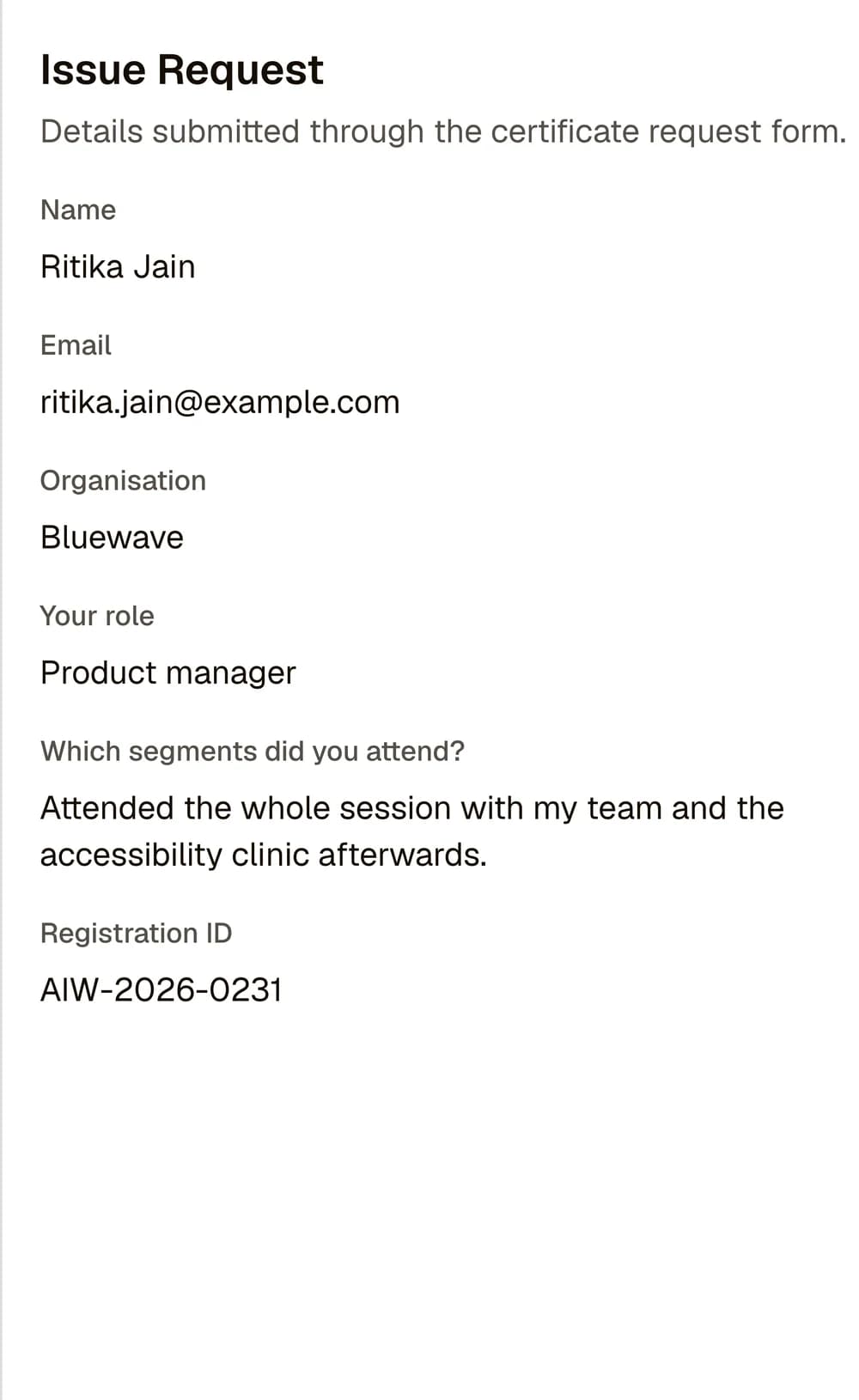
Share the public Issue Request Form link from a published certificate. Applicants confirm their email with a one-time code, then submit the fields you configured. Choose Issue Automatically or Review Before Issuing. Reviewed submissions appear in Issue Requests; accepting one issues the certificate and emails the recipient. The glossary calls this feature a Certificate Request Form.
Decide who should receive a certificate
Before sharing the Issue Request Form link, decide what counts as eligible: registered attendees, people who completed a workshop, team members, or another group. The form confirms control of an email address with a one-time code; it does not verify event attendance.
If you need to check attendance or eligibility against another record, choose Review Before Issuing and do that check in Issue Requests. Issue Automatically sends a certificate to anyone who submits the form, so use it only when access to the link is enough to qualify.
Ask only for the information you need
Request the recipient's name and any details the certificate needs. The applicant confirms their email address with a one-time code before submitting. Add only extra fields your certificate or review process requires, such as a team name, institution, or session.
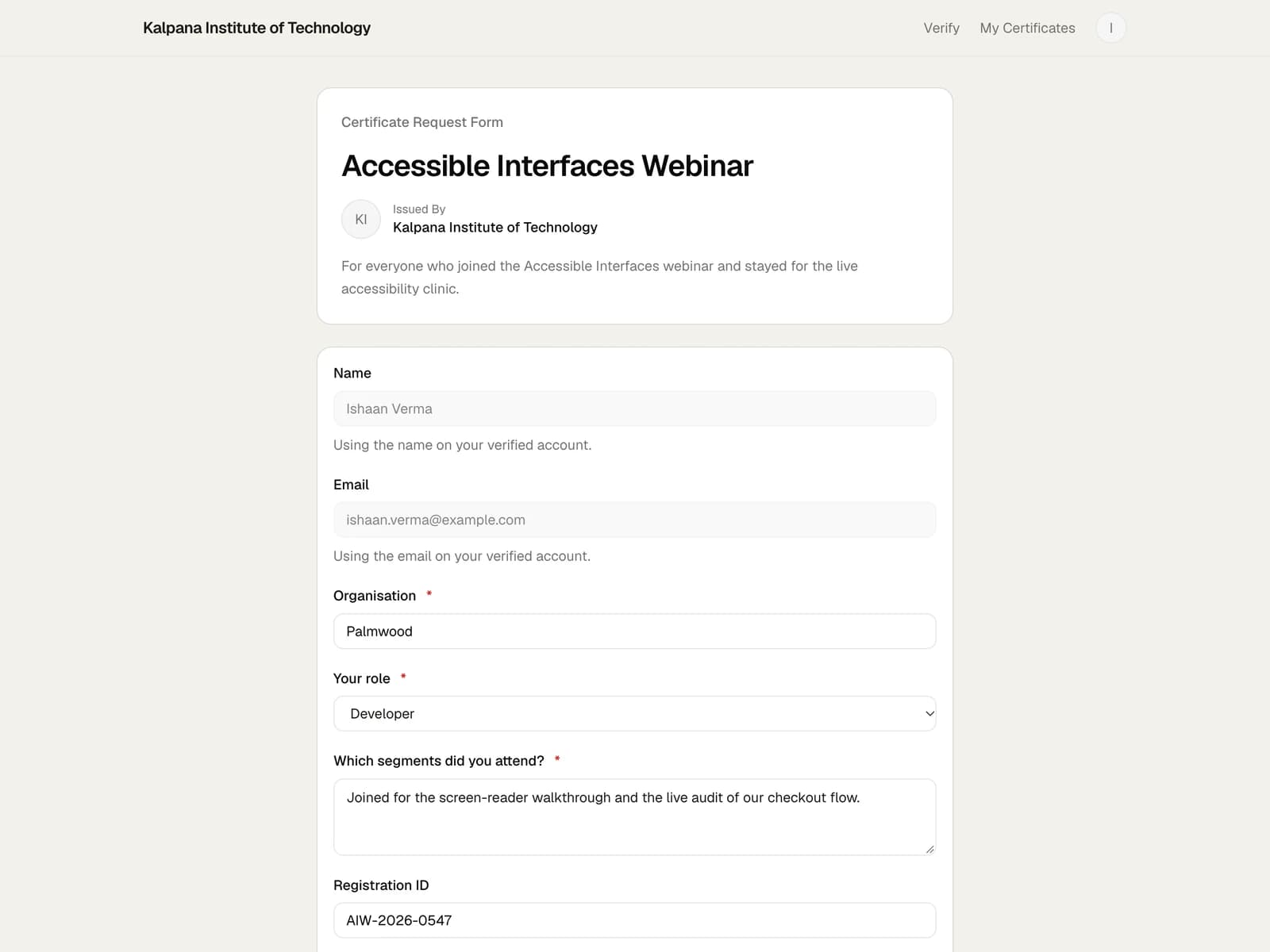
Tell people how to spell the name that should appear and when to expect the certificate: immediately with Issue Automatically, or after review with Review Before Issuing.
Choose how submissions are processed
Review Before Issuing is useful when you need to check event attendance or match submitted details against another record. You can accept and issue, reject, or reopen submissions in Issue Requests.
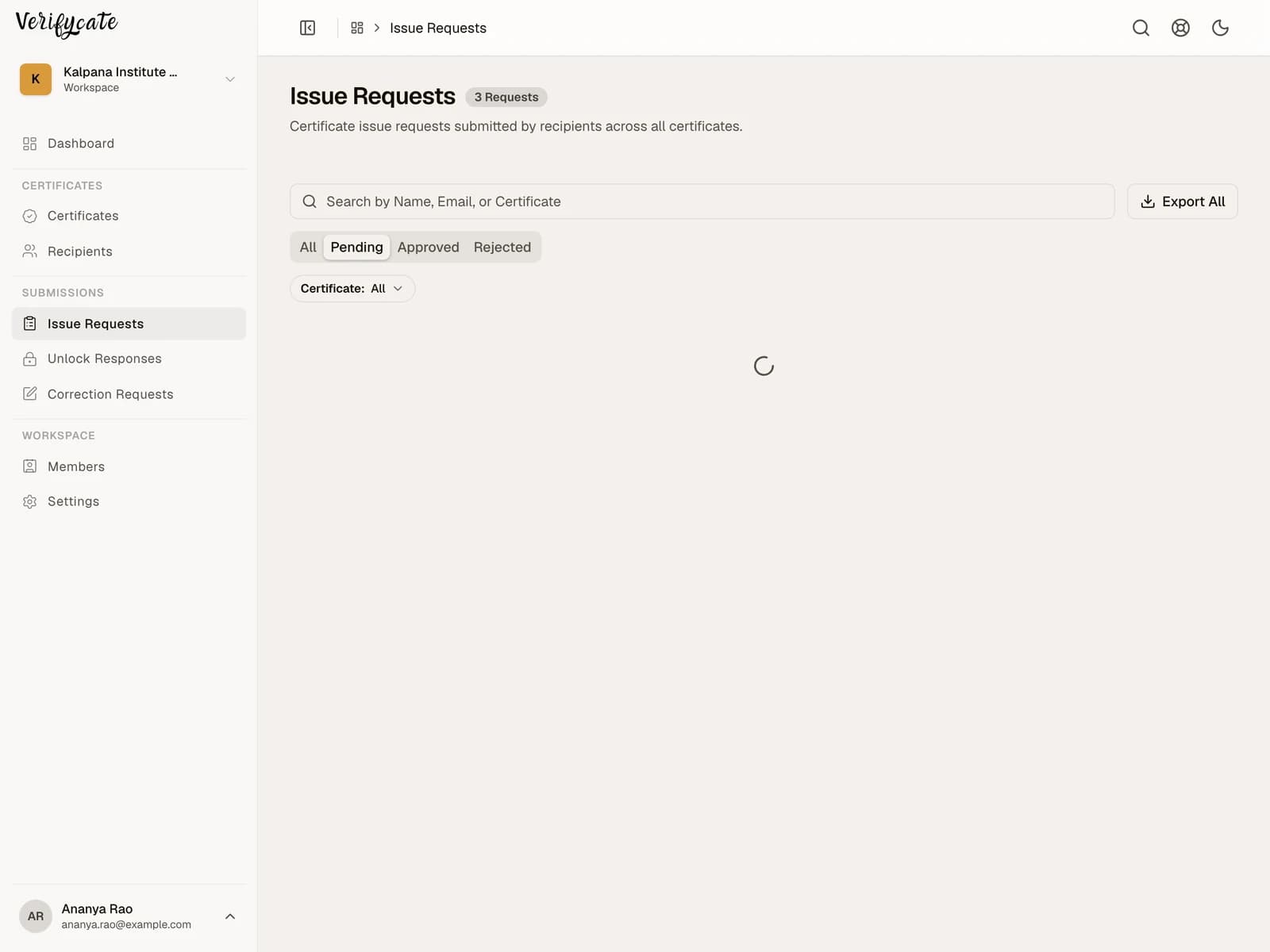
Issue Automatically sends the certificate to anyone who submits the form. It removes the review step; the form does not apply additional eligibility rules for you.
Share the link and close the loop
Share the Issue Request Form link in the event follow-up email, community space, or event page. Include a deadline and a contact path for people who cannot submit the form.
After the request window closes, review pending submissions in Issue Requests if you selected Review Before Issuing. Resolve duplicates, then let recipients know where to find their certificate page.
Facts checked on .
← All guidesKeep reading
Related resources
The next question organisers usually ask.
Start issuing
Put this guide to work
Start with 300 free credits. No card required.