
How to issue certificates from a webinar attendance export
Use a Zoom attendee report or Google Meet attendance report to prepare a recipient list, then import and issue webinar certificates in Verifycate.
By Abhiram Krishna · Founder and engineerPublished Updated 4 min read
In this guide
The use case
The webinar is over, but the attendance report may be in a different format from the certificate list you need. Some people join by phone, use a meeting-room name, or appear under an unexpected email address. Check the report and decide who qualifies before issuing certificates.
How it works in Verifycate
Bulk certificate generation
Verifycate does not connect directly to Zoom or Google Meet attendance. Export the report from the platform you used, prepare a CSV or Excel recipient file, then import it into a Verifycate certificate. Map the columns to recipient name, email, and certificate Attributes, review the recipients, and publish to issue and email certificates.
1. Confirm the attendance rule with your event team
Decide what counts as eligible before using the attendance report. For example, your team may require registration, a minimum attendance duration, or participation in a required session. The event organiser must apply that rule; Verifycate does not validate attendance or calculate eligibility from the report.
Check that attendance tracking was enabled where required and that you have access to the report. Report availability and permissions can depend on your Zoom account role or Google Workspace edition and settings.
2. Get the report from your meeting platform
For Zoom, a host or a user with report permissions can generate the meeting’s Attendee Report and export it as a CSV. Keep the full export as your source record while you prepare the certificate list.
For Google Meet, the organiser may receive an attendance report as a Google Sheets file after the meeting when attendance tracking is available and enabled. Review the report, then download a copy as CSV or Excel before importing it to Verifycate. Google’s report can show phone digits or a meeting-room name instead of a person’s name, so check those records with your registration or event data.
3. Prepare one certificate row per eligible recipient
Create a clean copy with one row for each person your team has confirmed should receive a certificate. Keep the recipient’s name and delivery email, then add only the details that should appear on the certificate, such as session, webinar title, or completion date.
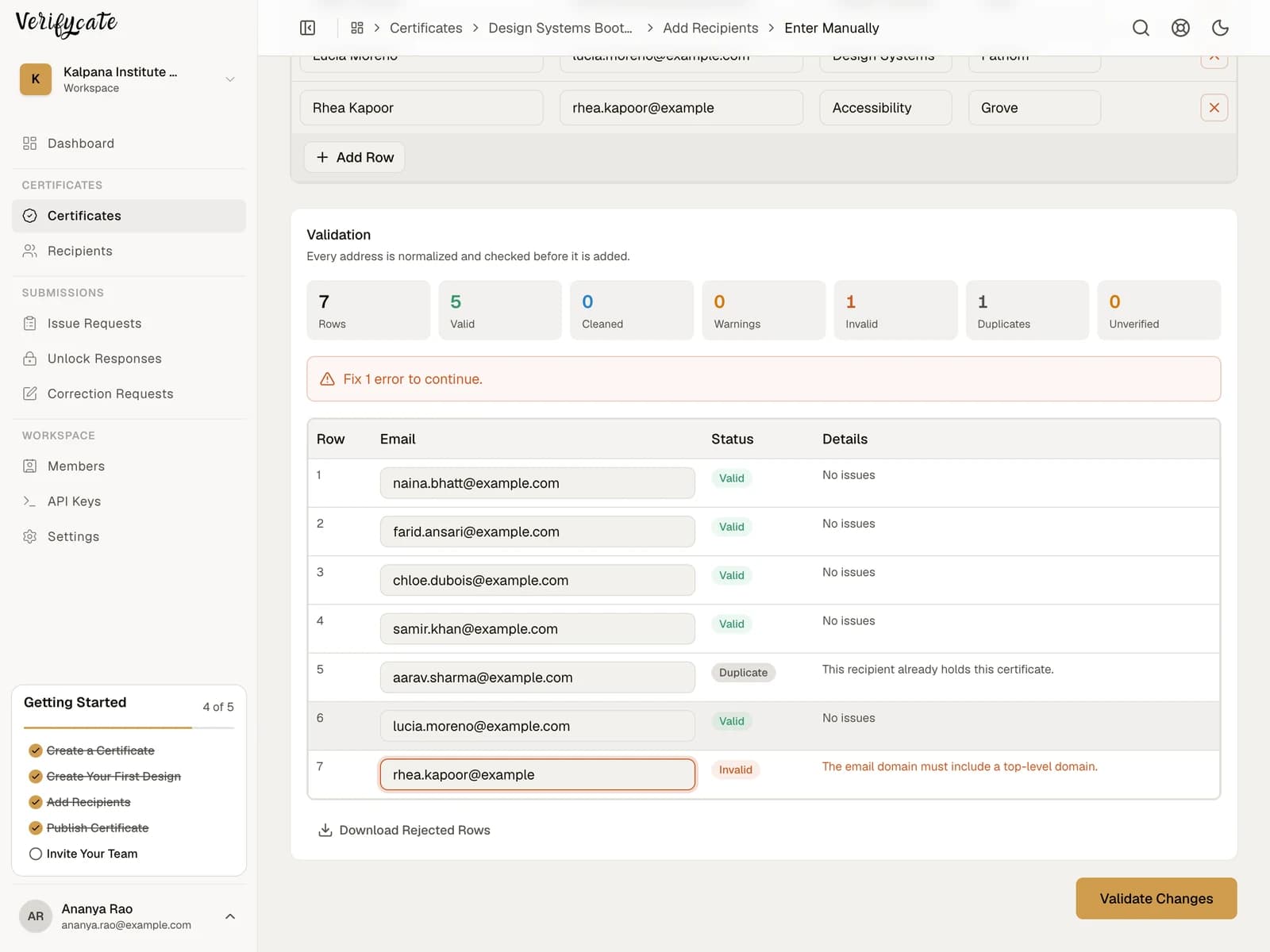
Compare the report with your registration list if a person’s name or email does not match. A meeting participant is not automatically eligible for a certificate; resolve unclear identities or eligibility with the event team before importing the final list.
4. Import and map the report columns
Create a certificate and Template in Verifycate. Add certificate Attributes for any webinar details that change between recipients, then add recipients by uploading the prepared CSV or Excel file. Map each spreadsheet column to recipient name, email, or the matching certificate Attribute.
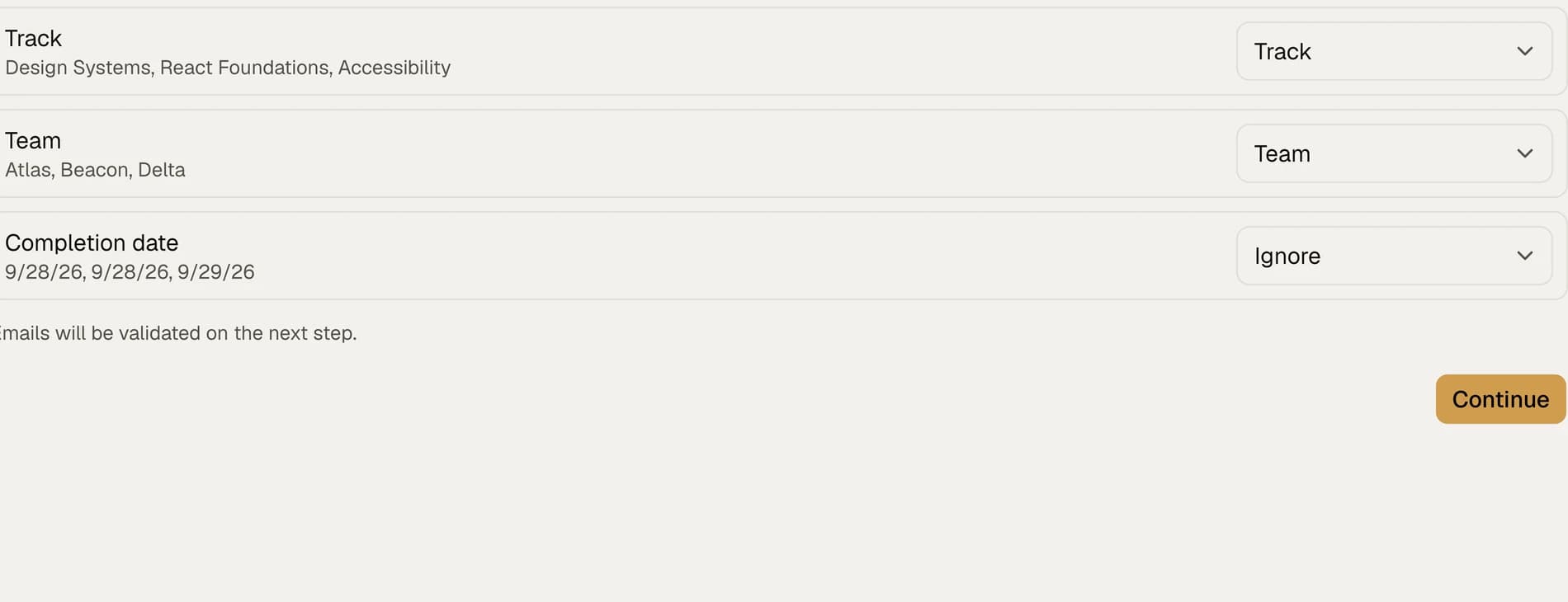
Preview the Template with recipient data. Check long names, session details, email addresses, and the public certificate page before sending the full batch. Duplicate recipient entries are identified and skipped during import, but review your source data to make sure that is the intended outcome.
5. Publish and handle exceptions
After reviewing the recipient records, publish the certificate to issue and email certificates. Each issued certificate uses one credit; importing the report does not.
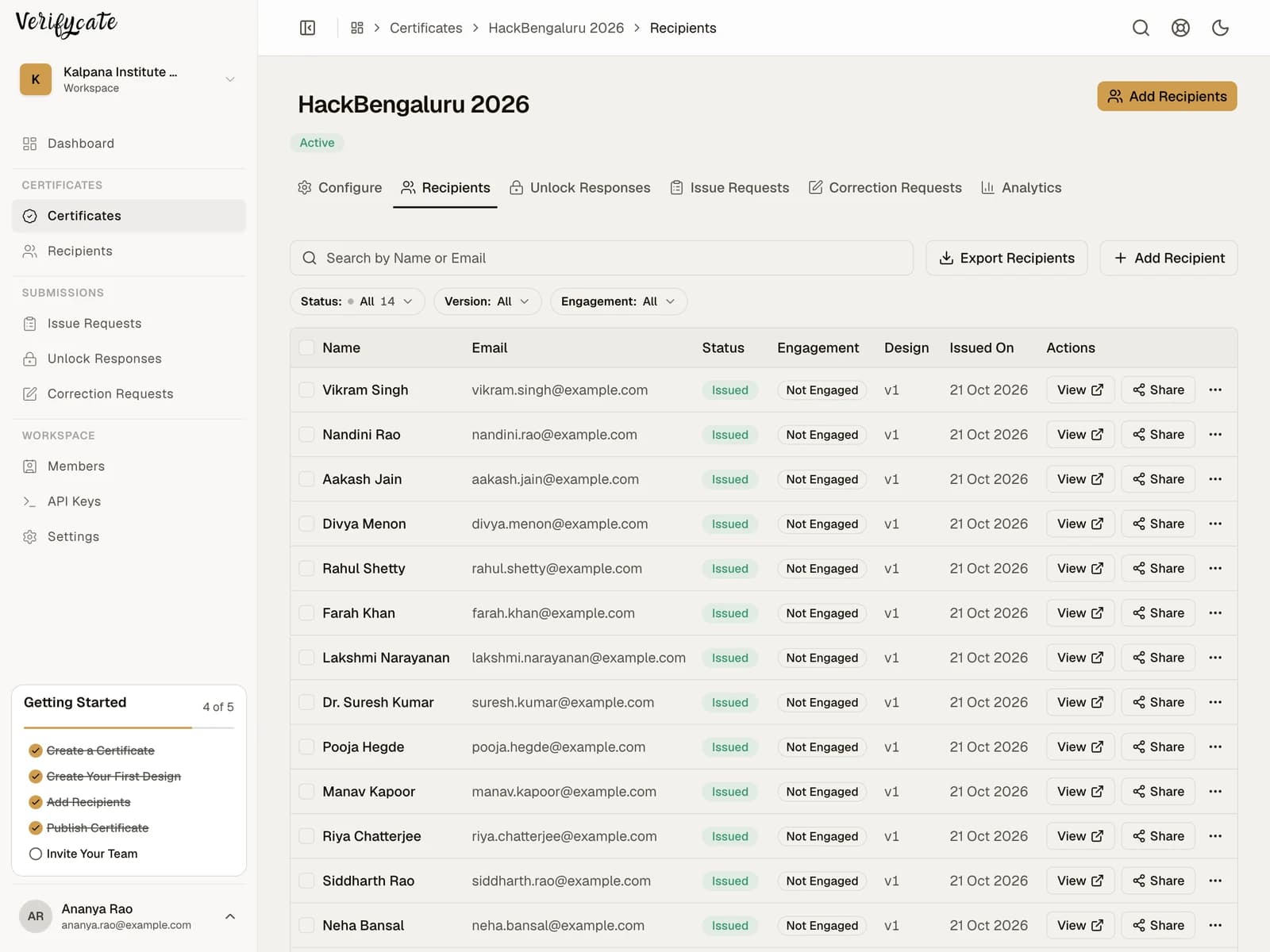
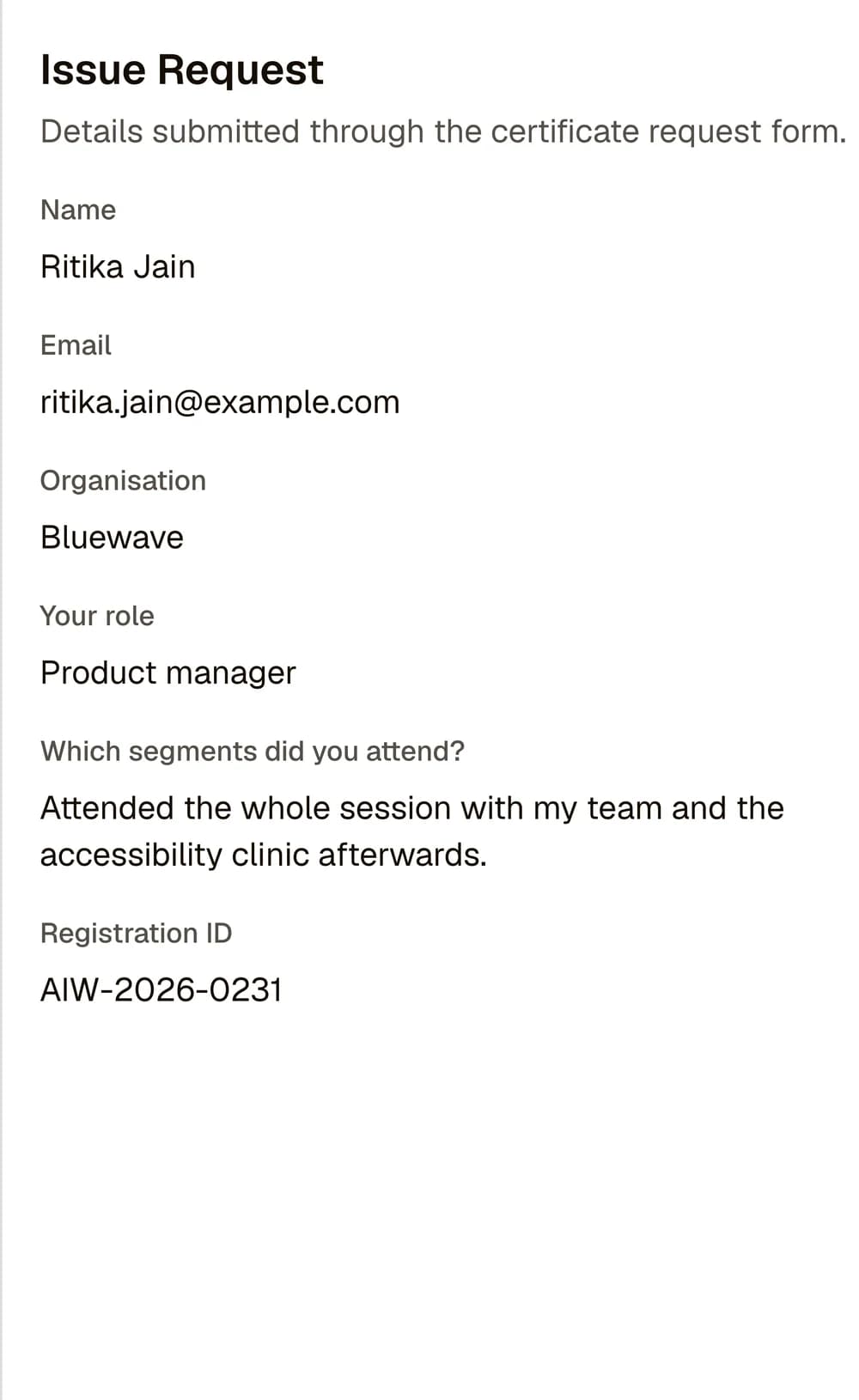
For someone who attended but is missing from your prepared list, share the Issue Request Form. Choose Review Before Issuing if the organiser needs to check the attendance report before issuing that person’s certificate. The Issue Request Form does not check attendance by itself.
Official platform instructions
Attendance reports and account requirements change. Check the current instructions for the platform you use.
Facts checked on .
← All guidesKeep reading
Related resources
The next question organisers usually ask.
Start issuing
Put this guide to work
Start with 300 free credits. No card required.