
How to prepare an attendee spreadsheet for certificates
Prepare a clean recipient spreadsheet for event certificates. Learn which columns to include, how to use certificate Attributes, and what to check before importing.
By Ashwin S Shenoy · Founder and engineerPublished Updated 4 min read
In this guide
The use case
A certificate batch is only as accurate as the recipient list. Missing email addresses, duplicate rows, and inconsistent event details can turn one post-event task into a long correction round. A little structure makes the list easier to review before you issue certificates.
How it works in Verifycate
Bulk certificate generation
In Verifycate, create a certificate and Template, then add recipients by uploading a CSV or Excel file. Map the spreadsheet columns to recipient name, email, and certificate Attributes. Review the imported recipients before publishing; publishing issues and emails their certificates. Importing the list does not use credits, while each certificate issued uses one credit.
1. Decide who belongs on the list
Confirm which recipients qualify before exporting or building the spreadsheet. The event or training team should check attendance, completion, award results, volunteer records, or whichever rule applies. Verifycate imports the list you provide; it does not decide who is eligible.
If recipient groups need different wording or designs, decide whether to create separate certificates or to use one Template with recipient Attributes such as Award, Track, Session, or Role.
2. Use one row per recipient
Give every recipient a separate row. Include the name exactly as it should appear and the email address where the certificate should be delivered. Add only event details that you plan to use in the certificate design or recipient records.
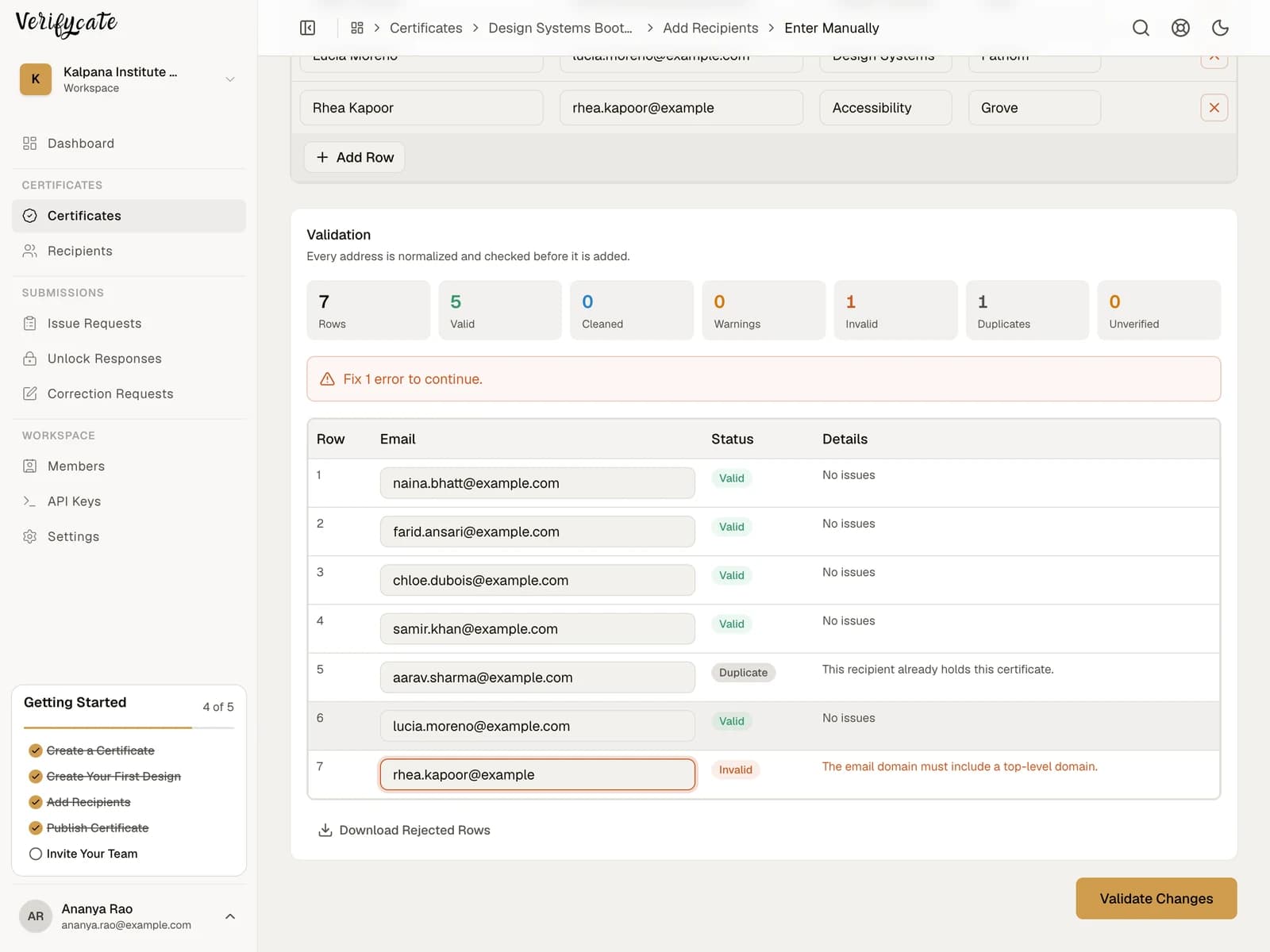
Use consistent column names and values. For example, use one spelling for each track or role rather than mixing ‘Mentor’, ‘mentor’, and ‘Mentorship’. Keep the original event export so organisers can check a row if a recipient questions it later.
- Name — the recipient’s display name
- Email — the delivery address
- Course or Event — the relevant event or programme
- Optional details — such as Award, Team, Session, Cohort, or Role
3. Set up matching certificate Attributes
In the certificate setup, add a certificate Attribute for each extra detail you want to store or place on the Template. For example, a hackathon certificate might use Award and Track; a training certificate might use Course and Cohort.
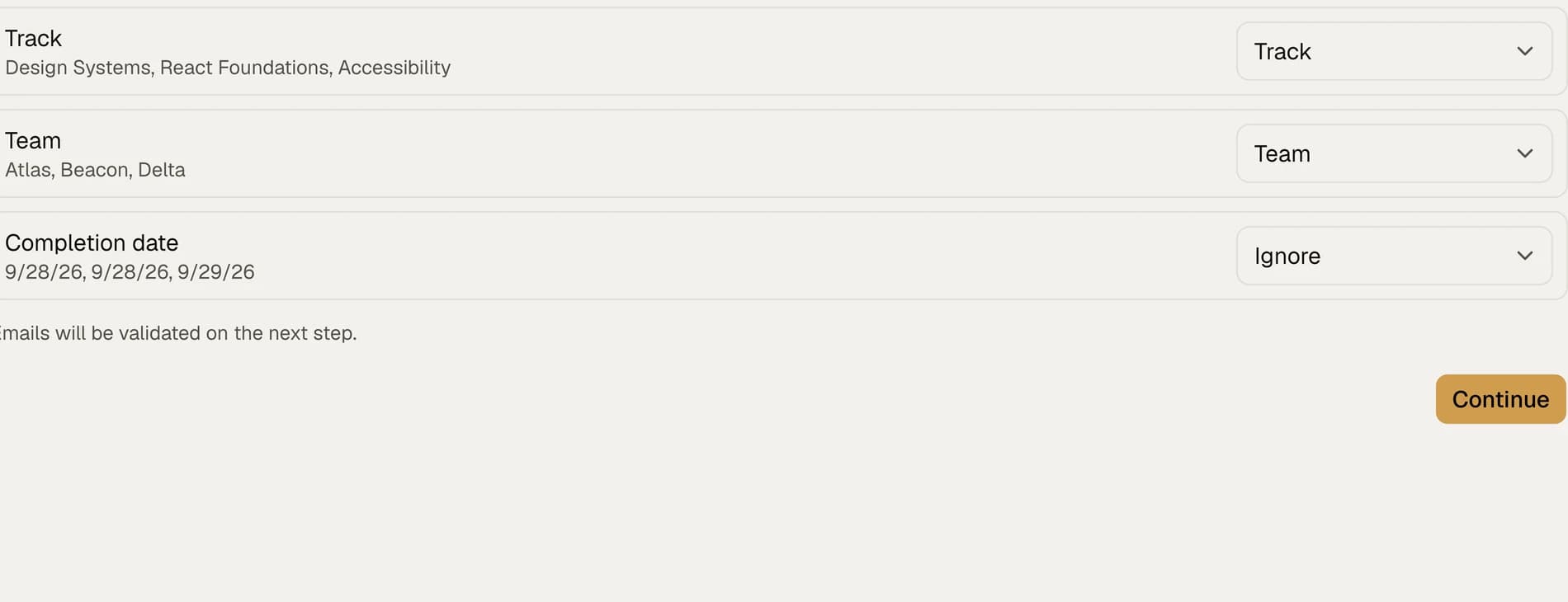
A spreadsheet heading does not automatically decide where a value appears on the certificate. During import, map each column to the matching recipient detail or certificate Attribute. Then add that Attribute to the Template if it should be printed or shown on the certificate page.
4. Check the file before importing
Look for blank names, invalid or missing email addresses, repeated recipients, and inconsistent group labels. If someone appears more than once, decide which row has the right information before uploading; Verifycate identifies and skips duplicate recipient entries during import.
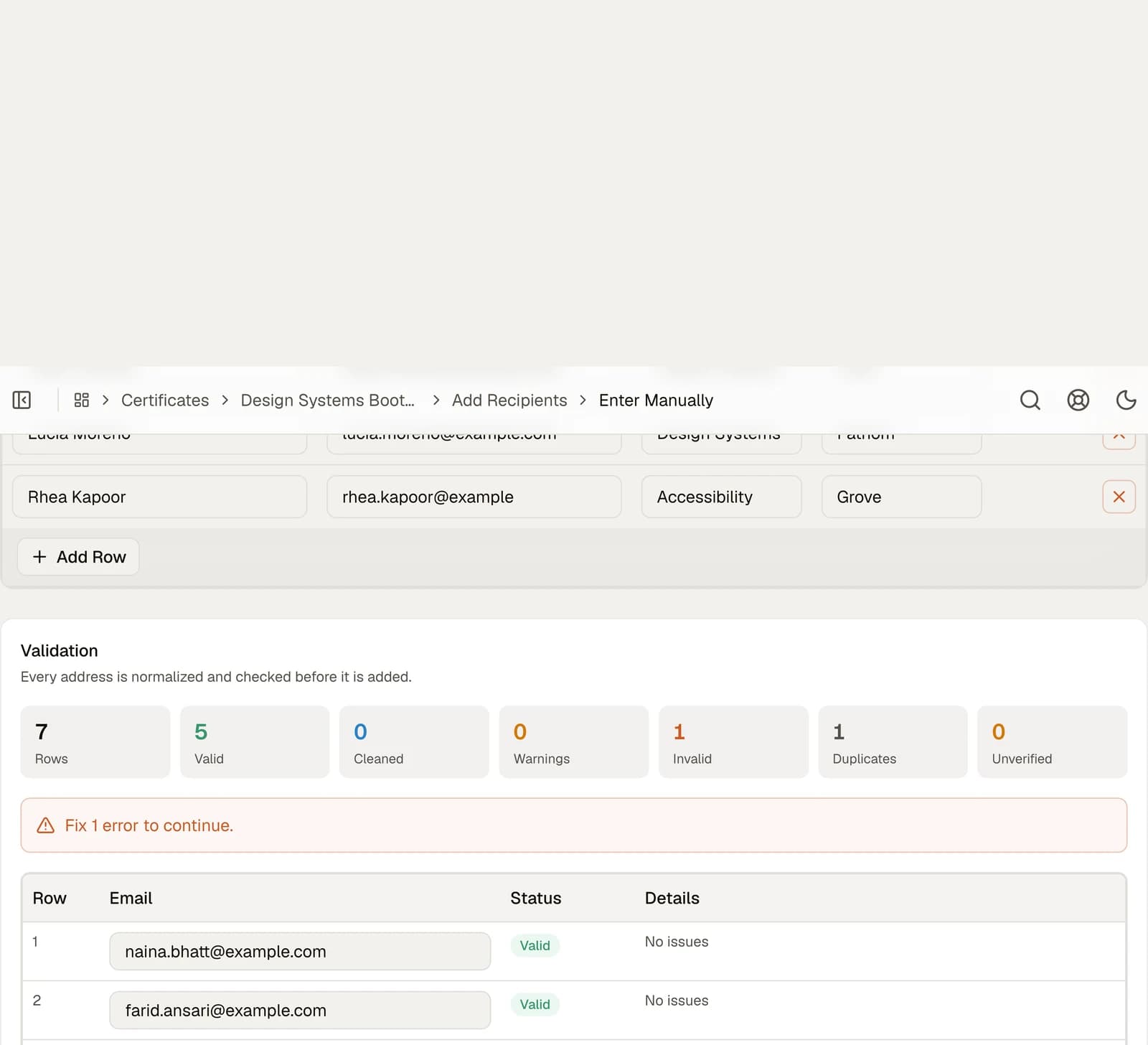
Use the downloadable examples as starting points. Replace the sample data with your event’s actual recipient records, and create any matching certificate Attributes before mapping columns in Verifycate.
5. Import and review the recipients
Create the certificate, choose the Template, and open the add-recipient flow. Upload the CSV or Excel file and map its columns. Check the resulting recipient list, then preview the Template with recipient data—especially long names and fields that change by group.
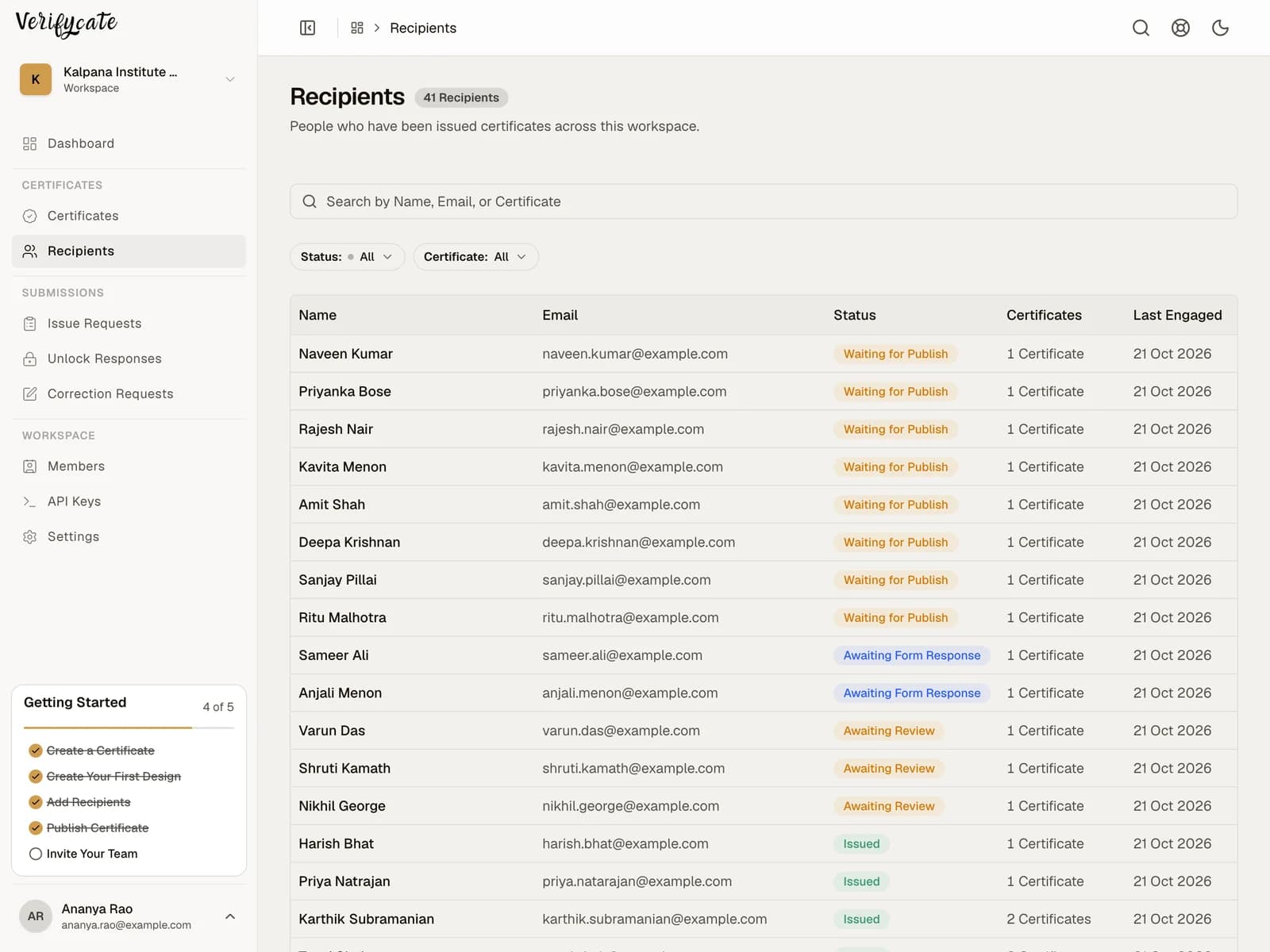
Publish only after the list and preview look right. Publishing issues and emails the certificates, and each issued certificate uses one credit. If someone is missing later, use the Issue Request Form; choose Review Before Issuing if an organiser must check eligibility first.
Downloadable resources
Use these files as starting points. Replace the sample data with your own and check it before issuing.
Facts checked on .
← All guidesKeep reading
Related resources
The next question organisers usually ask.
Start issuing
Put this guide to work
Start with 300 free credits. No card required.