
How to issue different certificates to event groups
Plan certificate designs and recipient lists for event winners, attendees, speakers, judges, mentors, and volunteers.
By Ashwin S Shenoy · Founder and engineerPublished Updated 4 min read
In this guide
The use case
One event can recognise people in several ways. Winners may need an award title, speakers need a thank-you, and participants need proof they took part. If every person receives the same certificate, the wording may not fit. If every group gets a separate manual process, the organiser has more lists to prepare.
How it works in Verifycate
Certificate Templates and Attributes
In Verifycate, create a certificate and attach a Template. Use separate certificates and Templates when groups need different wording or design. When the same design works, use recipient Attributes such as Award, Track, Team, or Role to personalise it. Map those columns during CSV or Excel import, then preview the Template with recipient data before publishing.
1. List the groups and what each one is being recognised for
Start with the event’s actual recipient groups: for example, winners, finalists, participants, speakers, judges, mentors, and volunteers. Write down what each certificate should recognise and which details must appear.
Use the event’s results or attendance records to confirm each recipient’s group. Verifycate issues the recipient data you provide; it does not decide who won, spoke, judged, or attended.
2. Choose separate certificates or one personalised Template
Create separate certificates when groups need different wording, issuer details, or visual design. This can make the recipient list easier to review when award winners and general participants have different recognition.
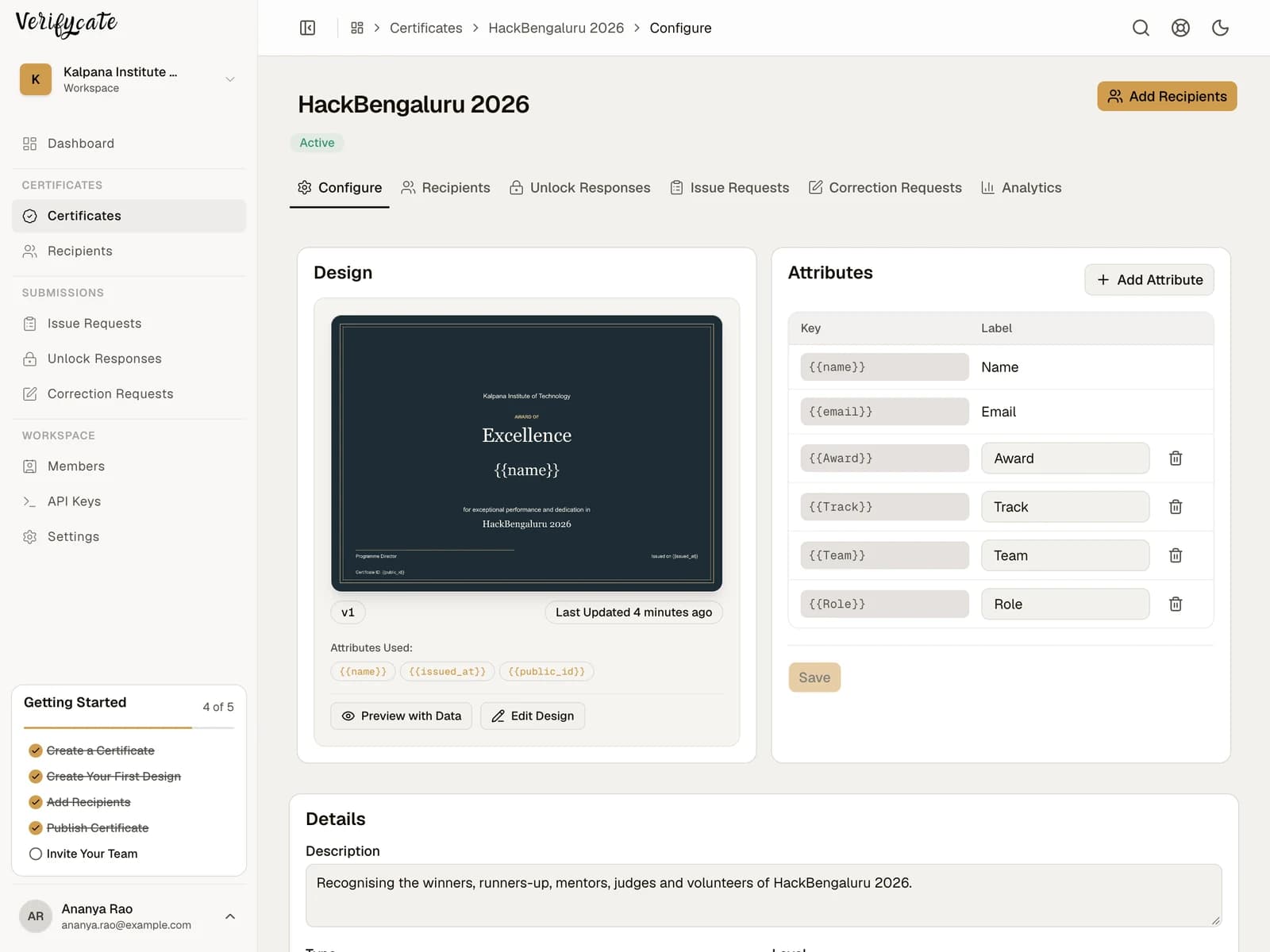
Use one certificate and Template with recipient Attributes when the design and wording are mostly the same. For example, a shared event design can show each person’s Award, Track, Team, or Role from their recipient record.
3. Keep the data easy to map
Use one row per recipient and consistent values in the columns that identify each group. For a competition, that might be Award, Track, and Team. For a conference, it might be Session and Role. Create corresponding certificate Attributes in Verifycate before mapping these columns during import.
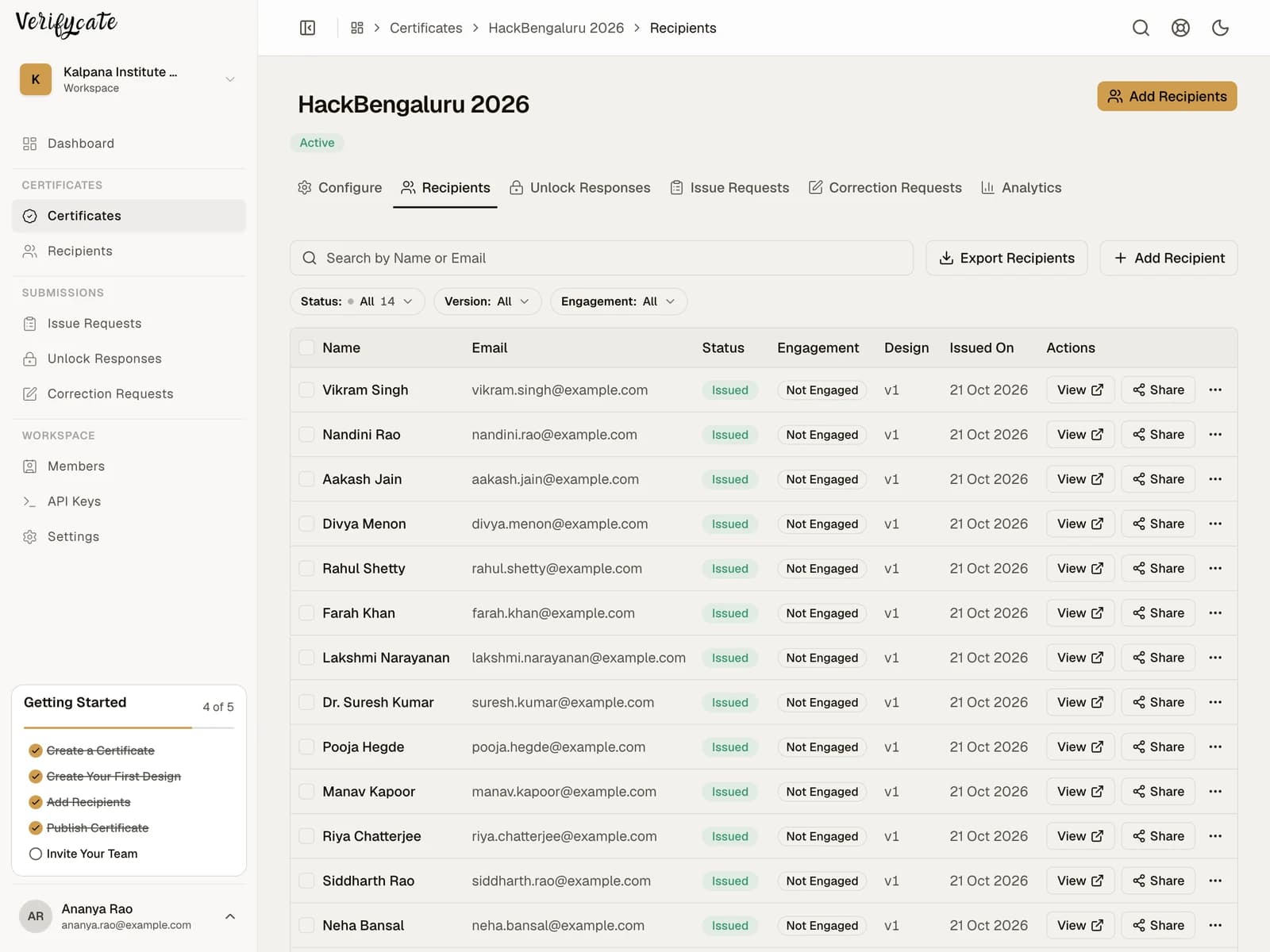
If you are using separate certificates, split the prepared recipient list by certificate before adding recipients. If you are using one Template, check that every row has the right group value and that the related Attribute is included in the design.
4. Preview every kind of recipient
Use Preview with Data to check examples from each group—not only the first row. Look for long award names, missing team values, unexpected role labels, and text that does not fit the Template.
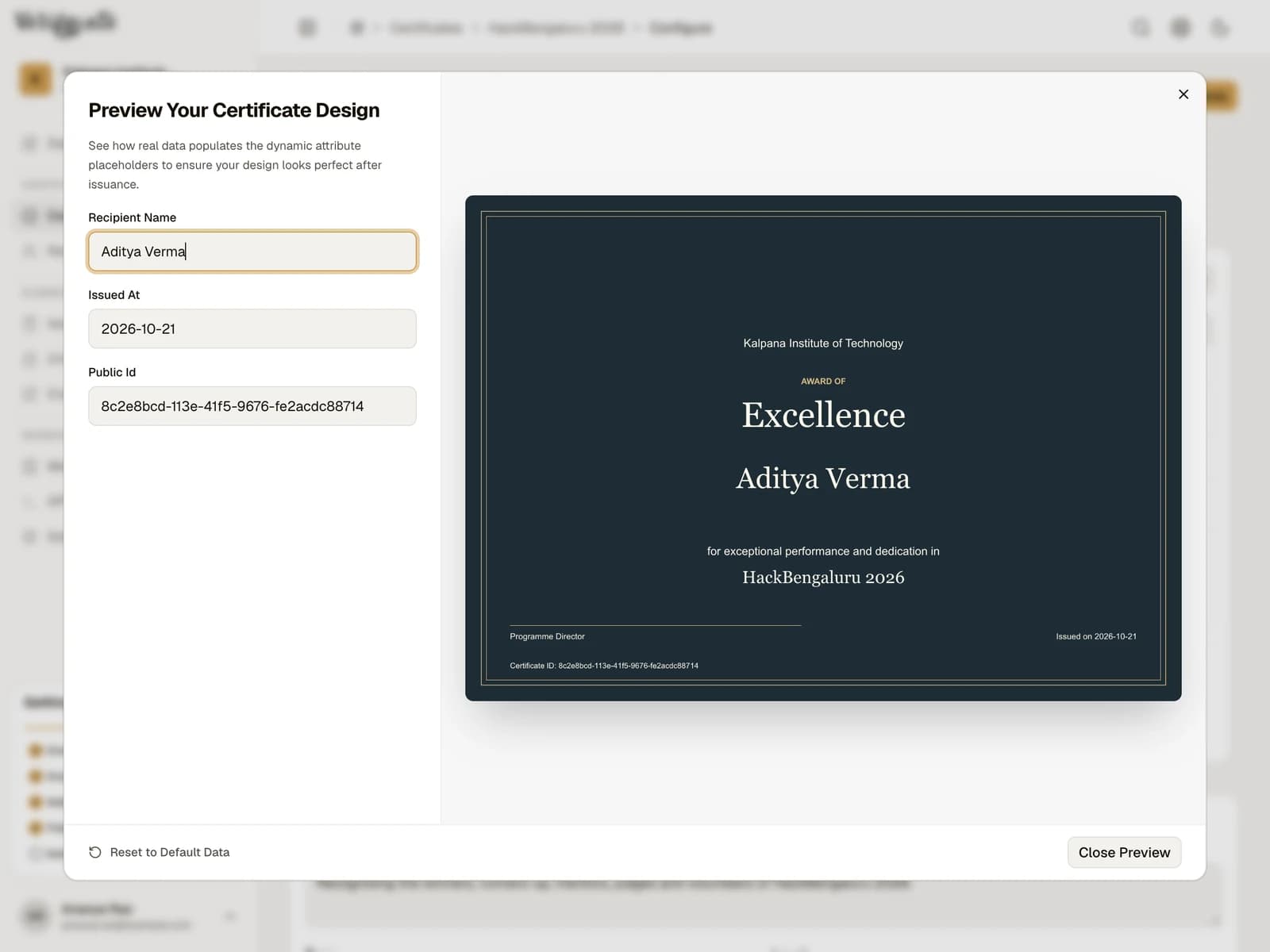
Ask another organiser to review the group-to-certificate mapping before publishing. The person checking the list should be able to tell which award or role each row receives without guessing.
5. Publish each group and handle later requests
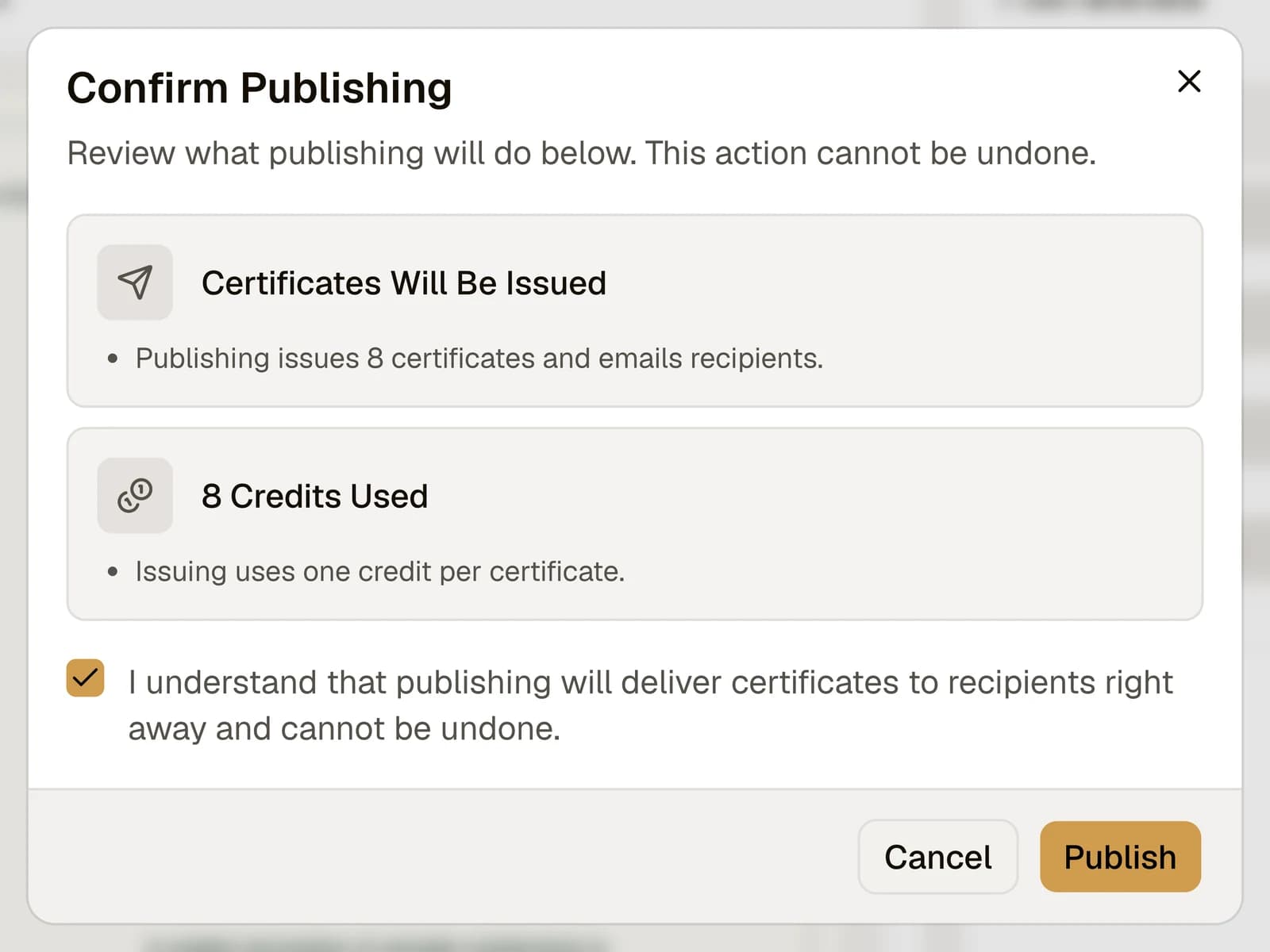
Review the recipient list and publish when each certificate is ready. Publishing issues and emails the certificates; each certificate issued uses one credit.
If a participant or volunteer is missing, share the Issue Request Form and choose Review Before Issuing if someone must confirm their eligibility. If a recipient later spots a typo, they can submit a Correction Form request from their certificate page.
Downloadable resources
Use these files as starting points. Replace the sample data with your own and check it before issuing.
Facts checked on .
← All guidesKeep reading
Related resources
The next question organisers usually ask.
Start issuing
Put this guide to work
Start with 300 free credits. No card required.