
The event certificate checklist: from attendee list to public certificate page
A practical checklist for preparing recipient data, issuing event certificates, handling corrections, and sharing verification links.
By Ashwin S Shenoy · Founder and engineerPublished Updated 4 min read
In this guide
The use case
The certificate work often starts after the event is over. A little preparation makes the handoff from attendance data to issued credentials easier to review and less likely to create a second round of corrections.
How it works in Verifycate
Bulk certificate generation
In Verifycate, create a certificate, design its Template, import your recipient list, and publish to issue and email certificates. One Template is personalised for each recipient. Imported columns map to Attributes that can appear on the design. For people missing from the list, share the Issue Request Form; for feedback before release, use an Unlock Form; for later fixes, use the Correction Form.
1. Decide who receives each certificate
List the recipient groups before you design: attendees, speakers, winners, volunteers, facilitators, or sponsors. Decide whether each group needs different wording or a different design.
For competitions, record the award category or track in the recipient data. For workshops, decide whether you are recognising participation, completion, or another outcome.
2. Prepare and check the attendee data
Keep one row per recipient and use a consistent spelling for each name. Include an email address when you want to deliver the certificate directly, plus any event fields that need to appear on the design.
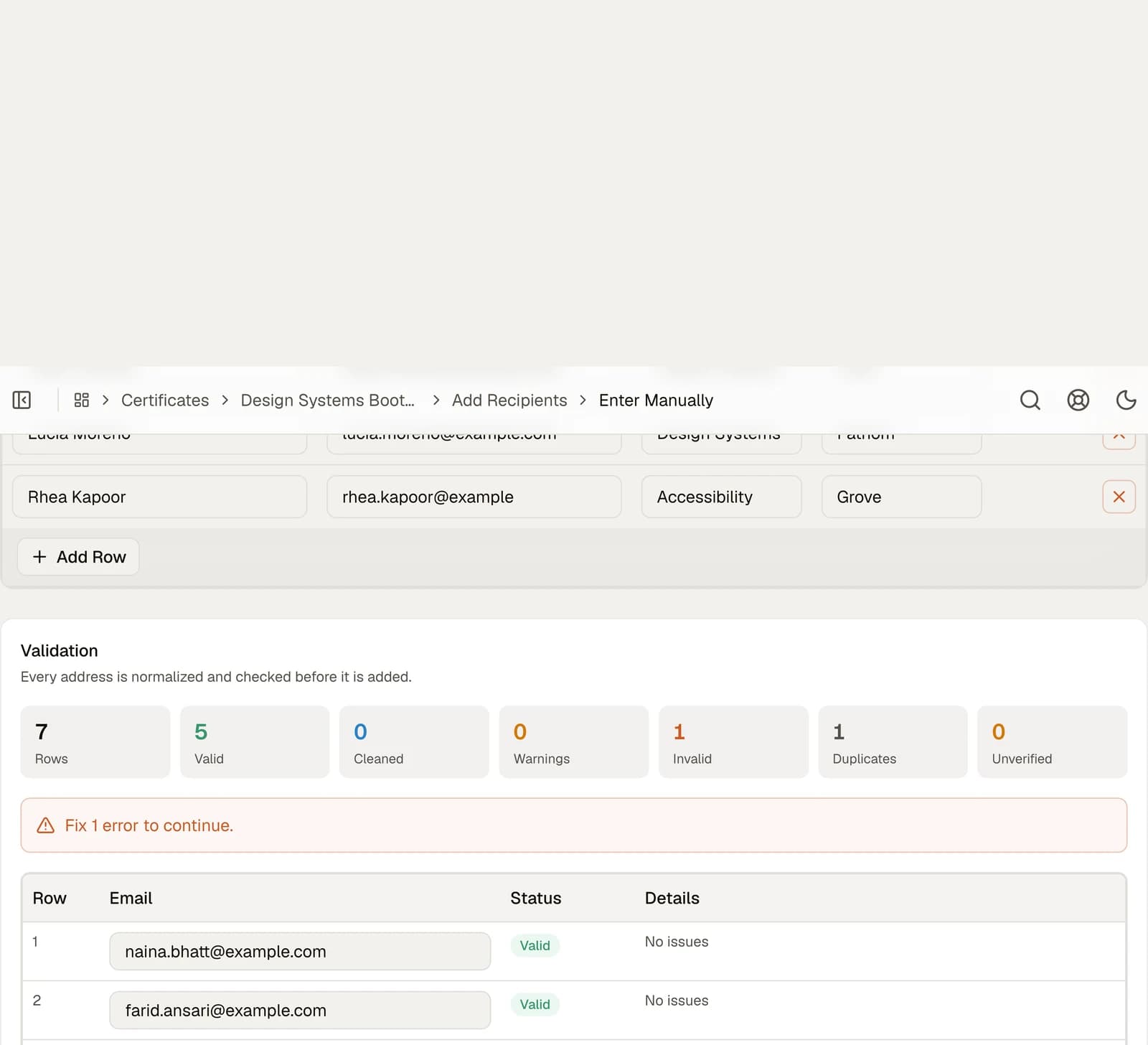
Before importing, check for duplicate rows, missing names, inconsistent category labels, and email typos. Keep a copy of the source export so the team can resolve questions later.
- Name as it should appear
- Email address for delivery
- Event, session, team, or award fields
- A clear way to distinguish recipient groups
3. Design and review the Template
Add the event name, date, issuer, and recipient Attributes to the Template. Check that longer names and team names fit. Make sure the QR code is readable at the size it will appear on the certificate.
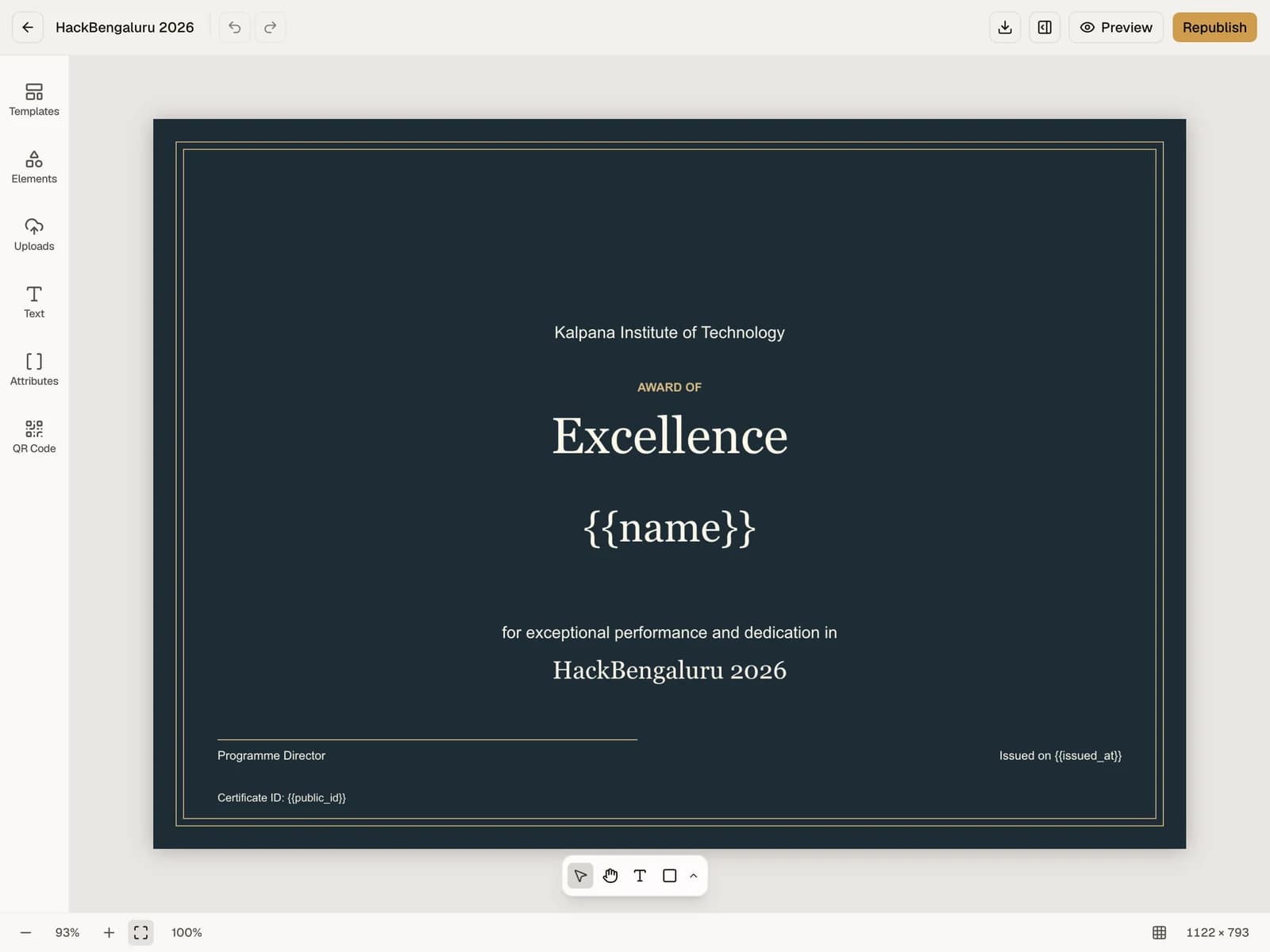
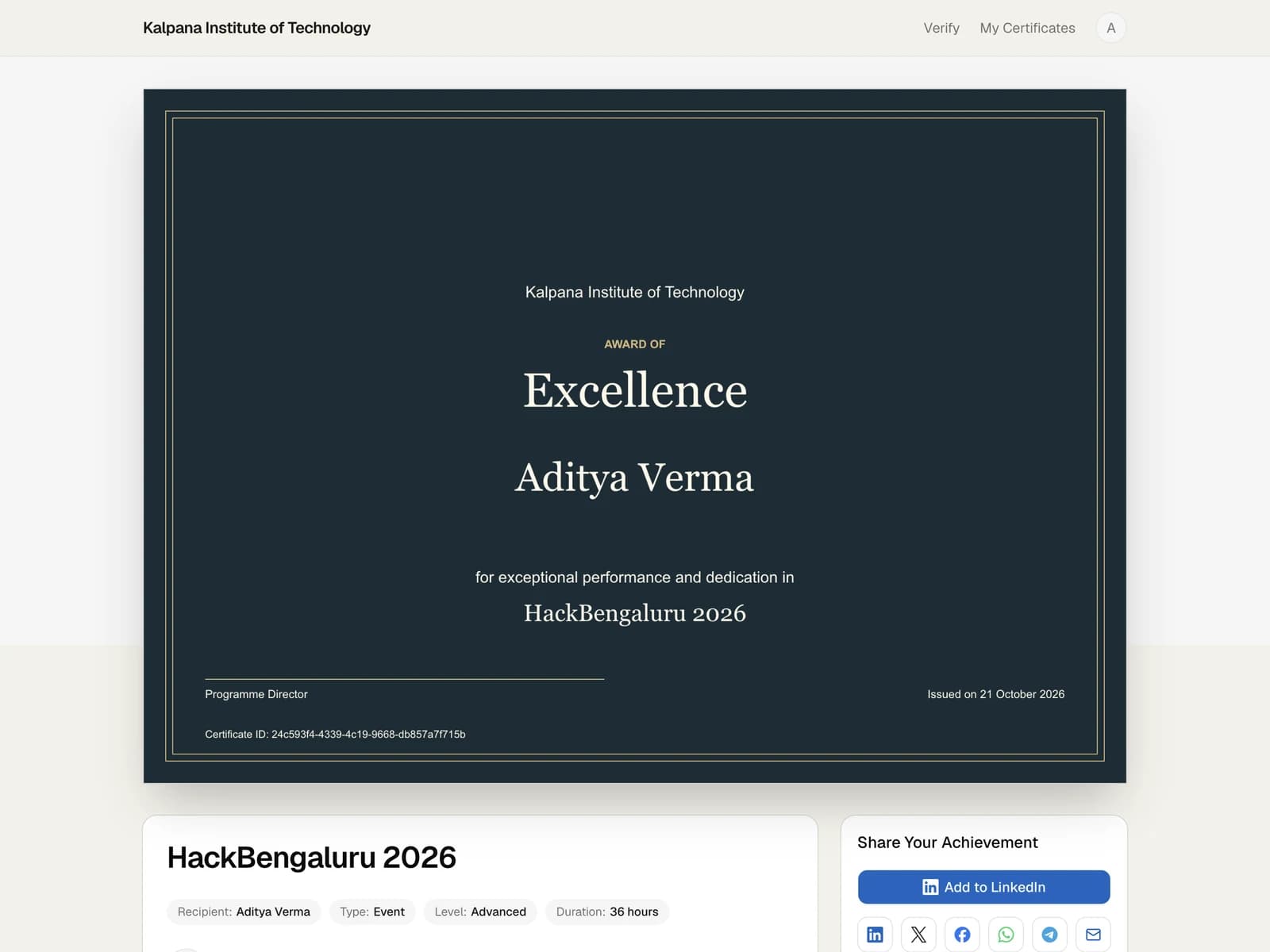
Preview the Template with recipient data before publishing a large batch. Review the recipient email, public certificate page, downloaded file, and verification result—not just the design canvas.
4. Publish and communicate
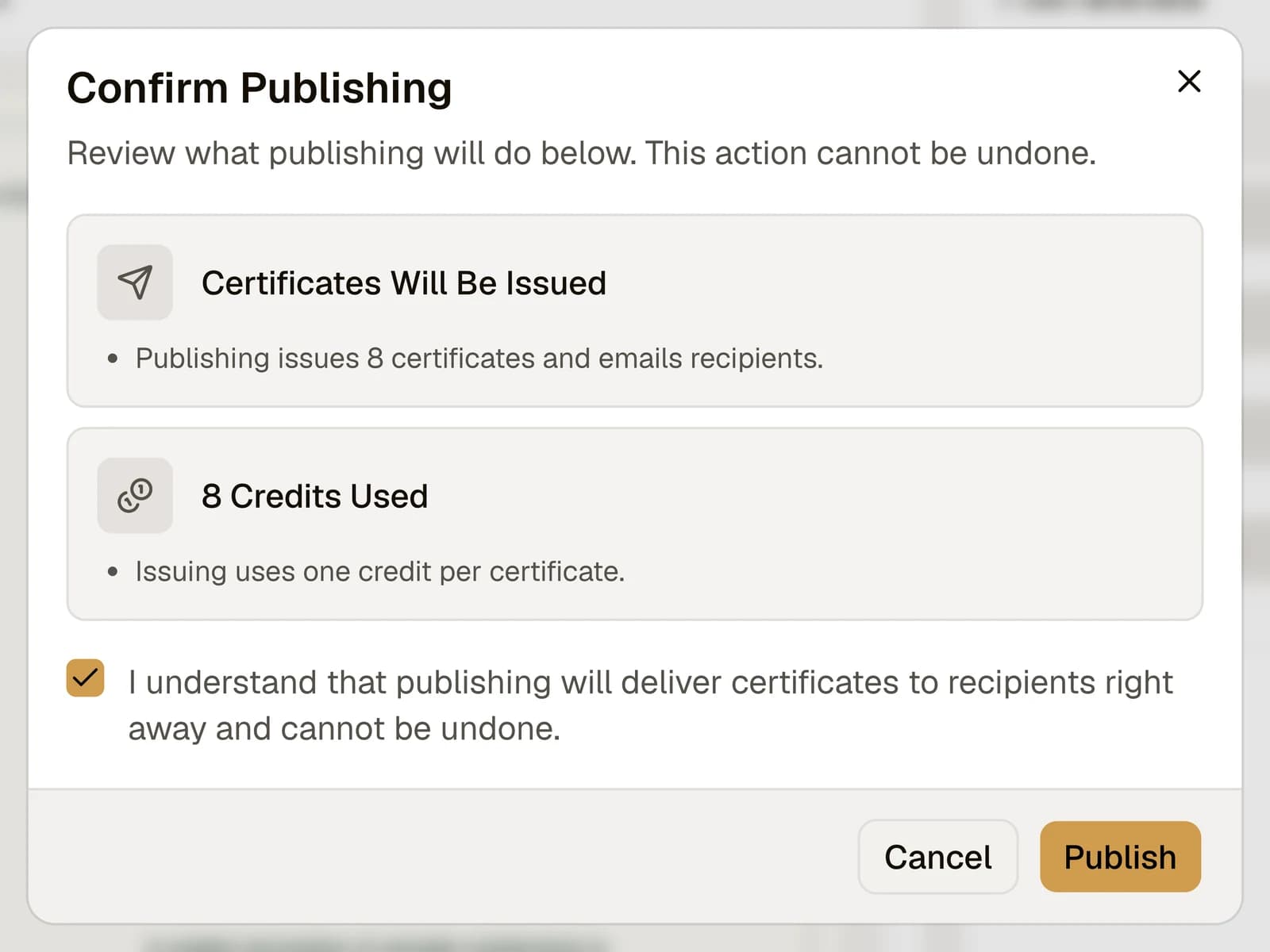
Import the final recipient list, map its columns to Attributes, and review the recipients. Publishing issues the certificates and emails recipients. Tell them where the certificate link will arrive and how to retrieve it if they cannot find the message.
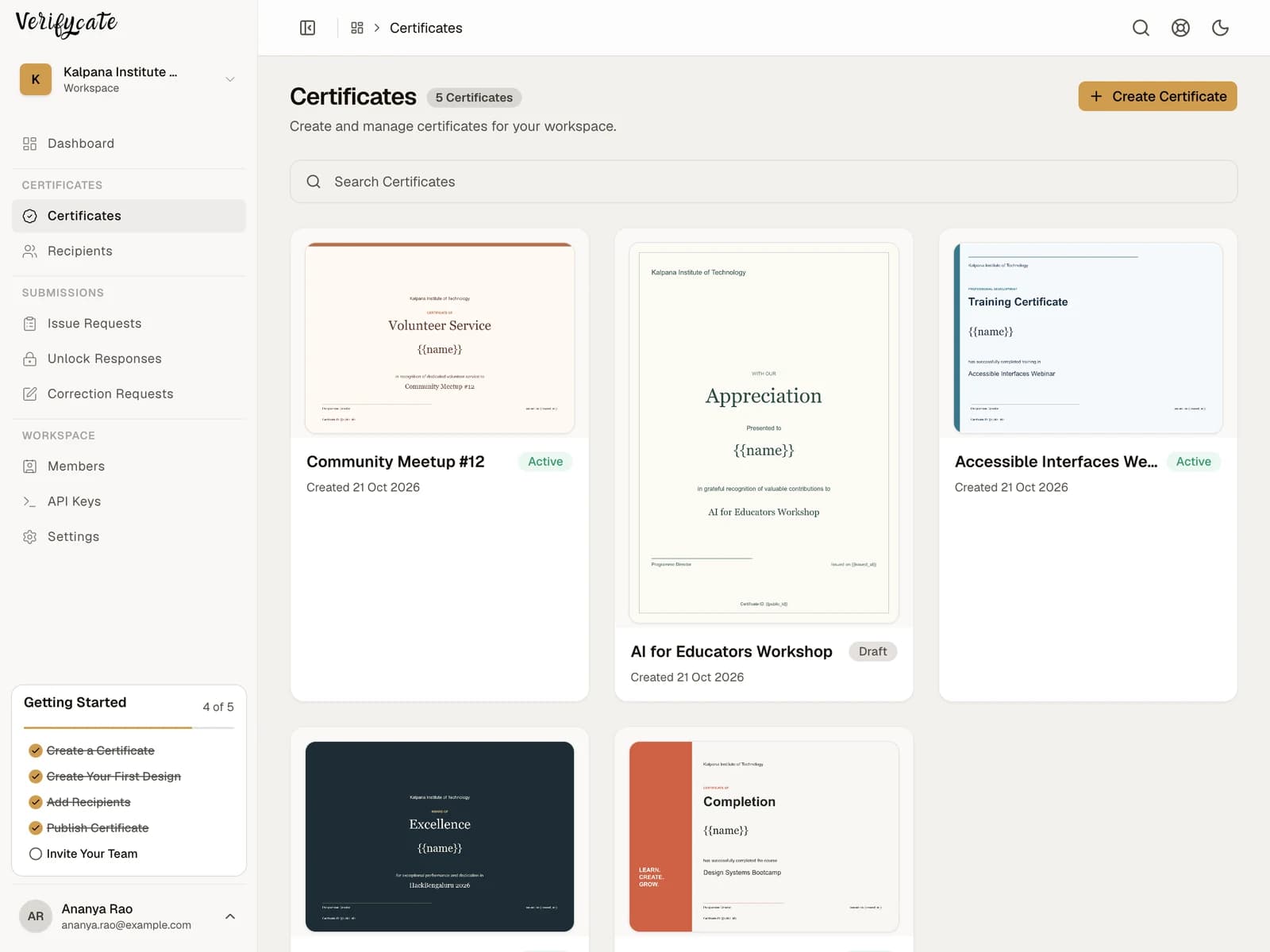
For people missing from the list, share the Issue Request Form link. Explain who is eligible and whether submissions are issued automatically or reviewed first.
5. Plan for corrections and verification
Tell recipients how to use the Correction Form to request a change. The public certificate page and QR code give them a link others can open to check the certificate.
After publishing, monitor delivery states and respond to bounced or incorrect addresses. Save the final recipient list and note what you would change for the next event.
Downloadable resources
Use these files as starting points. Replace the sample data with your own and check it before issuing.
Facts checked on .
← All guidesKeep reading
Related resources
The next question organisers usually ask.
Start issuing
Put this guide to work
Start with 300 free credits. No card required.